How to add emojis in Google Docs on Mac
Last verified By Francesco Bonomi
On this page
Google Docs has its own emoji picker, and the standard Mac emoji shortcuts also work directly inside a document. You do not need an extension or a separate app to add emoji on a Mac.
The three fastest options are typing @emoji, searching with a colon such as
:smile, or pressing Fn + E to open the Mac Character Viewer.
The quick answer
- Type
@emojiand press Return. - Type a colon followed by a search term, such as
:smile. - Press Fn + E or Globe + E, or Control + Command + Space.
Place the cursor where you want the emoji before using any of these methods. Each one inserts a normal emoji character at that point in the document.
Use Google Docs’ built-in emoji picker
If you would rather not remember a shortcut, use the menu:
- Click where you want the emoji to appear.
- Choose Insert → Symbols → Emoji.
- Search by name, such as thumbs up or coffee, or browse the categories.
- Select an emoji to insert it.
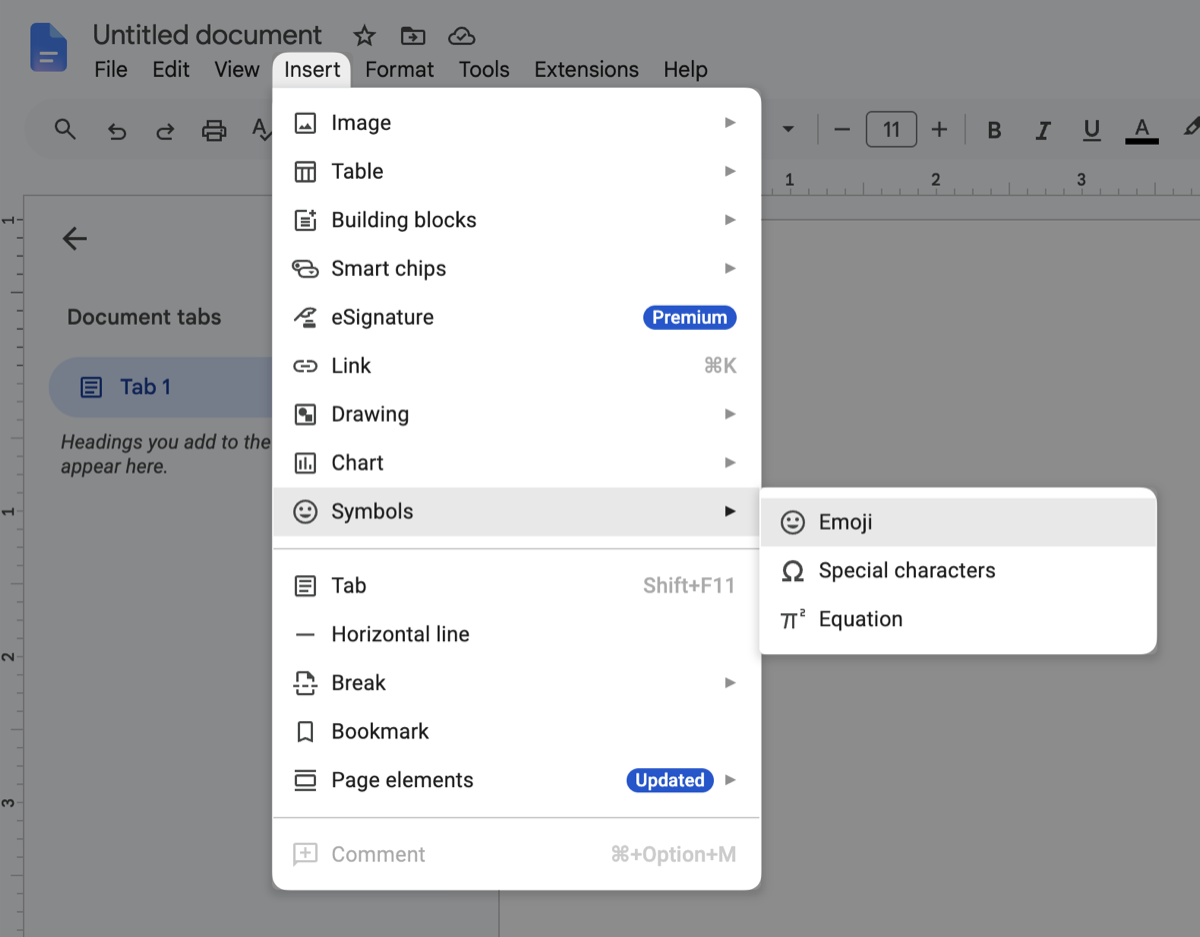
This is the most discoverable method, and it works without memorizing anything. Google documents the same menu path in its guide to inserting emoji and special characters.
Type @emoji in the document
The @ menu opens the same picker without reaching for the mouse:
- Type
@emojiwhere you want the emoji. - Press Return.
- Search for an emoji or browse the available options.
- Select the result you want.
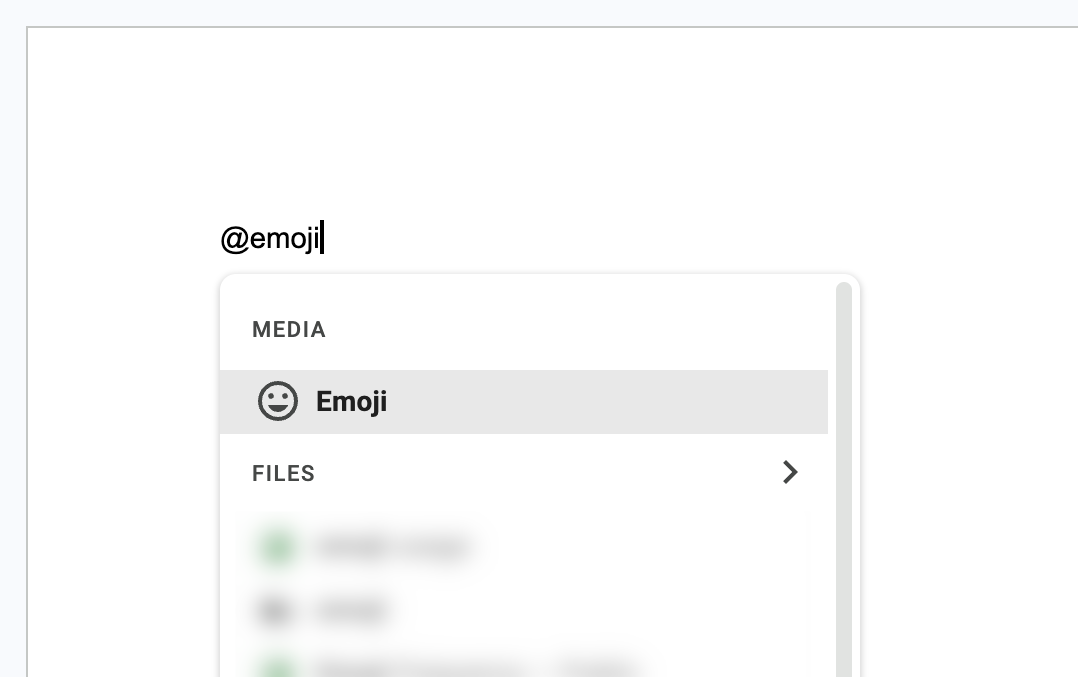
Google Docs replaces the command with the emoji you choose, so the @emoji
text does not stay in the document. This is convenient when you are already
typing and want to browse without opening a menu.
Search for emoji with a colon
If you already know roughly what you want, colon search is usually the shortest route:
- Type a colon followed by a word, such as
:cat. - Choose one of the suggested emoji, or press Return to see more.
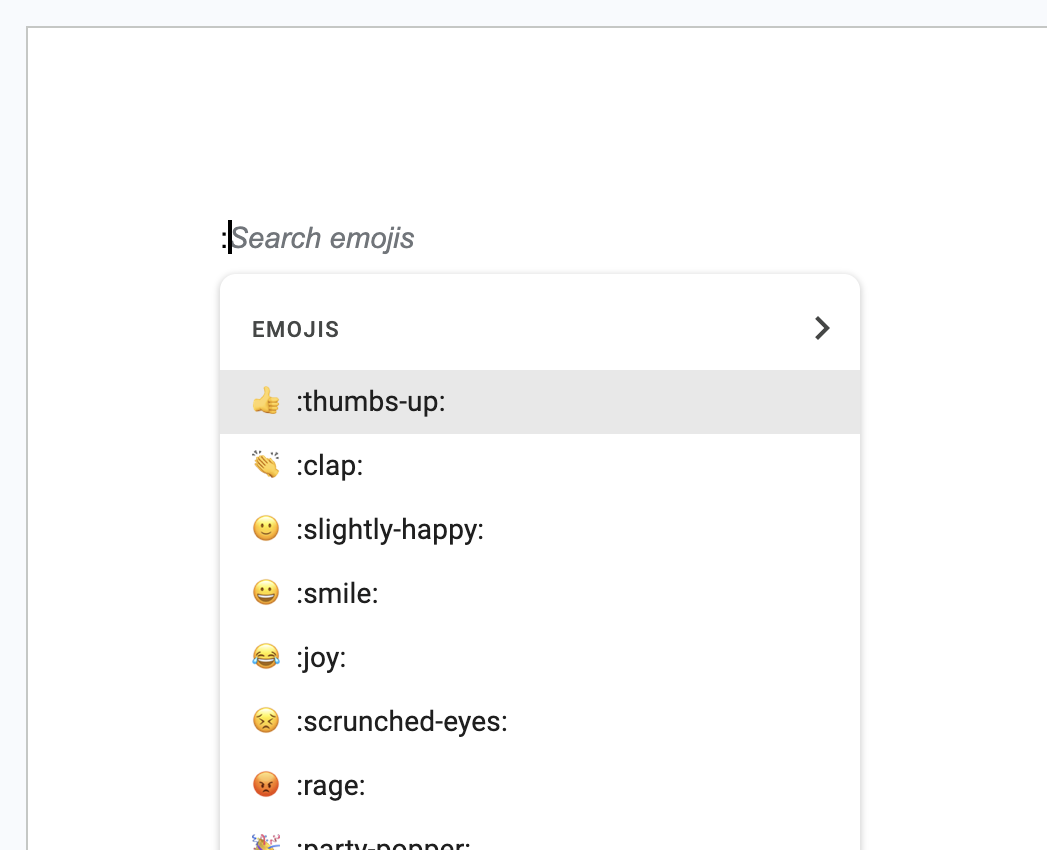
This works well for everyday words like :heart, :tada, or :warning. If
suggestions do not appear, open Tools → Preferences and make sure
Insert emojis using the colon character is selected.
Use the Mac emoji keyboard in Google Docs
The macOS Character Viewer works in Google Docs like it does in any other text field. Click inside the document first so there is an active cursor, then press Fn + E, or Globe + E on keyboards with a globe key.
The familiar Control + Command + Space shortcut opens the same viewer.
Search for an emoji in the Character Viewer and click it to insert it at the cursor. You can also choose Edit → Emoji & Symbols from the menu bar. Apple documents both options in its guide to using emoji and symbols on Mac.
For every Mac shortcut, the one-key Globe setting, and word-to-emoji suggestions, see how to open and use the emoji keyboard on Mac.
When emoji shortcuts do not work
Work through these checks in order.
Confirm the document is editable
Type a normal character in the document. If you only have view or comment access, you cannot insert emoji into the text until someone gives you edit access.
Click inside the document first
The Character Viewer inserts at the active text cursor. If focus is in the browser’s address bar or a Docs menu, the emoji will not land in the document.
Try the Google Docs menu
Choose Insert → Symbols → Emoji. If that works, the document accepts emoji and the problem is limited to one shortcut or search method.
Check the colon preference
Open Tools → Preferences and select Insert emojis using the colon
character. This setting only affects colon search, not @emoji, the menu, or
the Mac shortcuts.
Test the Mac shortcut in another app
Try Fn + E in Notes or TextEdit. If it works there, return to Google Docs, click in the document, and try again. If it fails everywhere, follow the Mac emoji shortcut troubleshooting steps.
Which method is fastest?
| Method | Best for |
|---|---|
| Colon search | Inserting a known emoji while typing |
@emoji | Browsing within Google Docs |
| Mac shortcut | Using the same method across Mac apps |
| Mowji | Finding and inserting emoji without leaving the typing flow |
A faster workflow across Mac apps
Colon search and @emoji only work inside Google Docs. Switch to Mail, Slack,
or Messages and you need a different method. The Mac Character Viewer works
everywhere, but it opens a separate window between you and your sentence.
Mowji is a keyboard-first emoji picker that works the same way across Mac apps. Type a short trigger and the word you have in mind, then choose the emoji without leaving the text field. Fuzzy search finds a match even when the word is not exact, favorites keep your usual emoji close, and it learns from the emoji you use. That usage data stays on your Mac.
Mowji is coming soon. Join the waitlist to hear when it launches.
Frequently asked questions
What is the emoji shortcut for Google Docs on Mac?
Google Docs has no dedicated Mac emoji shortcut, but the macOS ones work in any
editable document. Press Fn + E, Globe + E, or Control + Command + Space.
Inside Docs, typing @emoji and pressing Return is just as fast.
Can I type emoji using a colon in Google Docs?
Yes. Type a colon followed by a search term, such as :smile, then choose a
suggestion. The feature is controlled by Insert emojis using the colon
character under Tools → Preferences.
Why is colon emoji search not working?
The colon preference is probably turned off. Open Tools → Preferences and
select Insert emojis using the colon character. In the meantime, @emoji
and Insert → Symbols → Emoji still work.
What is the difference between inserting an emoji and adding an emoji reaction?
An inserted emoji becomes part of the document text. An emoji reaction, added with Insert → Emoji reaction after selecting text, appears in the margin as feedback and does not change the text itself.
Can I use the Mac Character Viewer in Google Docs?
Yes. Click in an editable document, press Fn + E or choose Edit → Emoji & Symbols, then select an emoji. It is inserted at the cursor like any other character.