

Emojis as you type. Type : and a word, and pick an emoji without leaving the field. The cursor stays put. You keep typing.
All features
The big features. And the little things that keep you typing.
Keyboard native. Type to search, use the arrow keys to choose, and press Return to insert. The mouse can sit this one out.
At home in your apps. Get a consistent picker in the apps where you write, chat, plan, work, and post every day.
Your usual ones, ready to pick. See your Favorites as soon as you type the trigger. Arrow keys to move, Return to insert.
Hello there :
Favorites, in your order. Save up to 30 favorites in Settings. Drag to put them in the order that feels right to you.
Choose your starting point. Start with Favorites, Frequently Used, or Popular. Or keep the picker hidden until you type a search.
Start with the word in your head. Search with a word that makes sense to you, even if you don’t know the emoji’s exact name.
:mindblown
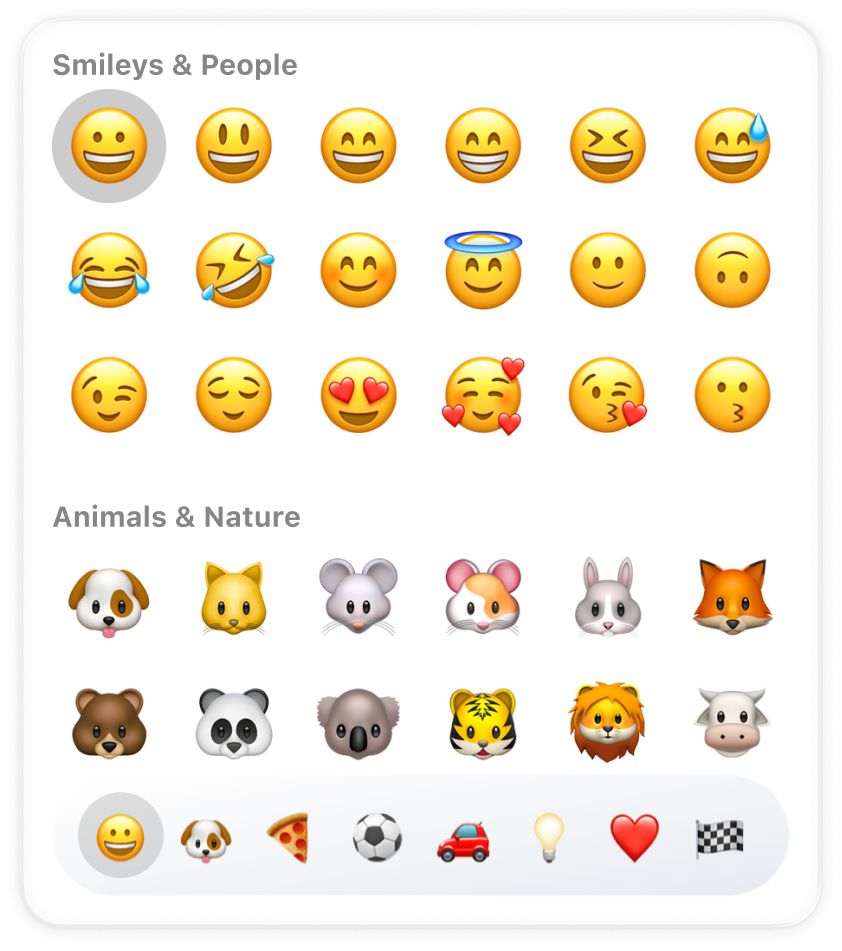
A little picker. A full browser. Keep it compact, or expand to explore emoji by category when you feel like browsing.
Typos happen. A little slip needn’t stop your search. Keep typing and find the emoji you meant.
Put words together. Try a combination like “crylaugh” to find that specific emoji you’re thinking of.
Learns what you use. Mowji learns from the emoji you choose, making everyday searches feel more familiar over time.
One emoji is sometimes not enough. Press Shift + Return to insert an emoji and keep the picker open. Pick another, and another. Shift + click works too.
Let’s celebrate 🎉🥳
Copy, then paste. Press ⌘ C with the picker open to copy the selected emoji to your clipboard. Paste it wherever you need it.
Put a name to that face. Hold Option to see the selected emoji’s name. Or rest your pointer on an emoji for a moment.
Choose your trigger. Use the familiar colon, or choose another character that fits the way you type.
Your words. Your aliases. Give an emoji a word you’ll remember. Set up your own aliases in Settings › Search.
Your preferred skin tone. Pick it once in Settings. Mowji applies your choice to all emoji that support skin tones.
Less of what you never pick. Hide individual emoji from search and the browser. Bring them back whenever you want in Settings.
More of a dog person? Hide cat-face expressions with one switch in Settings › Search. The other cats can stay.
Quiet where it should be. Pause Mowji in the apps you choose. Handy for editors and terminals where a trigger could get in the way.
Changed your mind? Escape. Dismiss the picker with a keystroke and get straight back to what you were writing.
No connection needed. Find and insert emoji even offline. Search happens on your Mac, with no AI service needed.
Personal stays personal. Your typed text, emoji searches, favorites, aliases, and emoji usage history stay on your Mac.
Light, dark, or just like your Mac. Choose Light or Dark in Settings, or follow your Mac’s appearance automatically with System.
Ready when your Mac is. Enable Launch at login and Mowji will be there when you start your day.
A quieter menu bar. Keep Mowji’s menu bar icon visible, or hide it. Reopen the app whenever you need Settings.
Settings, a shortcut away. Press ⌘ , while the picker is open to make a quick adjustment, then carry on typing.
 Download it for free